The Inspector, an often-overlooked section below the main Slidewise index, is a potent tool for dissecting individual presentation objects. It offers real-time insights as you select objects, presenting information that is often hidden or difficult to find within PowerPoint, alongside data that normally requires extensive searching.
To view the Inspector, you must first open Slidewise.
The information shown in the Inspector changes dynamically based on the object you currently have selected on your slides (see the placeholder example below).
To adjust the size of the Inspector, move the top bar by clicking and dragging it up or down to allocate more or less space.
The Slidewise Inspector window begins with information common to most selected PowerPoint objects. At the top, the object's name is displayed (as highlighted below), which corresponds to the name shown in PowerPoint's Selection Pane.
Below the name is the object type such as “Placeholder (AutoShape)” in the example above. You can find a complete list of all object types on Microsoft’s website here: MsoShapeType and MsoAutoShapeType.
In addition to the object type, we display several key properties that we consider important. For example, for text boxes, the autofit setting is shown, and for images, whether they are cropped. This offers a convenient, quick view of information that would otherwise require more digging.
Current properties shown are:
- Images: Cropped
- Text: Do Not Autofit, Shrink text on overflow or Resize shape to fit text
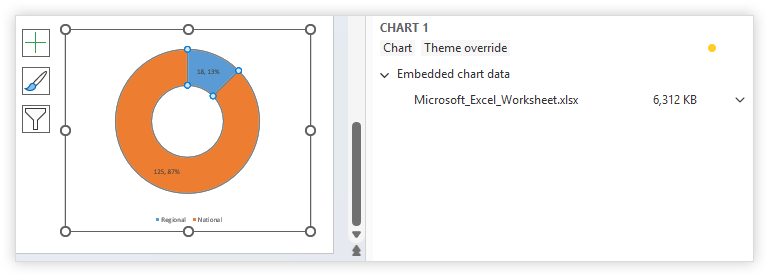
- Charts: Theme override
The detailed properties identified by Slidewise are displayed beneath the overview. For instance, the example below shows Colors and Languages.
Note: Slidewise won’t currently display theme fonts and colors.
The properties will include any information that Slidewise displays in its main index, but only for the selected shape.
These include but are not limited to: Fonts, Colors, Languages, External Links, Embedded chart data.
For Charts you can see the data that drives them, as well as colors, or theme overrides.
Information and warnings
Information tips are marked with a yellow dot, similar to the main index. Hovering over the row will display a tooltip with more context-sensitive information, such as the example below for Fonts.
An orange flag and text indicate warnings, like the one shown here for a distorted image.
Images, videos and audio
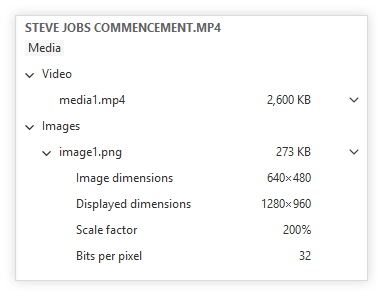
The Inspector displays even more handy information for images, such as, dimensions, bit depth and scaling.
If an image is cropped, this will also be displayed as in the example below alongside the type near the top.
Also, look out for numbers displayed alongside the image filename, which indicate if there are more instances of the same image elsewhere in the presentation.
Typically, videos have two components: the video itself and an image. The image is displayed on the slide to represent the video before playback begins.
Action menus and right-click
Where it makes sense we also include any actions that make sense to perform on individual objects, rather than bulk actions.
To locate the content selected in the Inspector within the main Slidewise index, simply right-click on it. A "Show in Slidewise" option will appear, which, when clicked, will take you directly to that content's location in the index.
Available options are context-sensitive, changing based on the selected content. For colors, you gain extra functionalities like copying the color's value or selecting all other objects on the slide that share that same color.
For images you can also access the Replace and Export options as shown below.
You can also reach these actions from the right-click menu in PowerPoint.